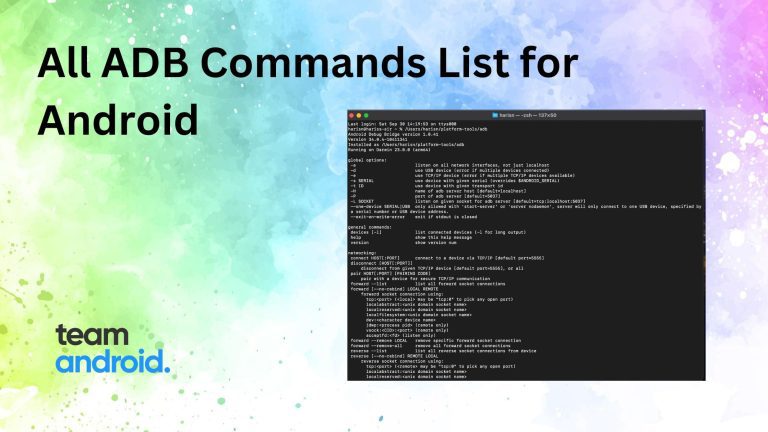
ADB Commands List for Android
This is a complete list of ADB commands cheat sheet that you can refer to when working with the Android Debug Bridge and Android devices. Bookmark this page for reference or save it as a PDF for offline access.

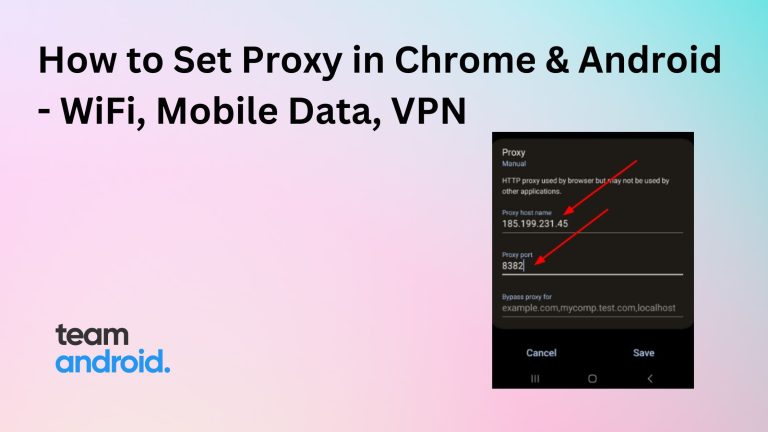
If you want to browse the web anonymously, access geo-restricted content, or protect your privacy online, you might want to use a proxy server on your Android device. You may have come across the term “proxy server” on the web…
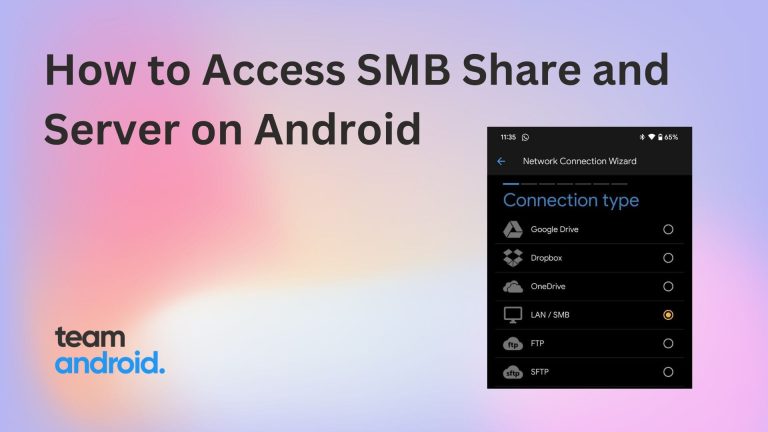
If you want to access files on your local network from your Android device, you don’t have to rely on cloud services. You can use the SMB protocol, which is a standard way of sharing files over a network. SMB…

If you’re living or working in a low signal area and you are unsure about your cellular signal strength, you may have seen applications that give you a relatively good idea about the strength of your cellular signals or internet…

Idle Breakout is a free, fun and online brick breaking game at Cool Math Games, which is also available to play on Android. You break different thickness of bricks based on numbers that are shown on the said bricks and…
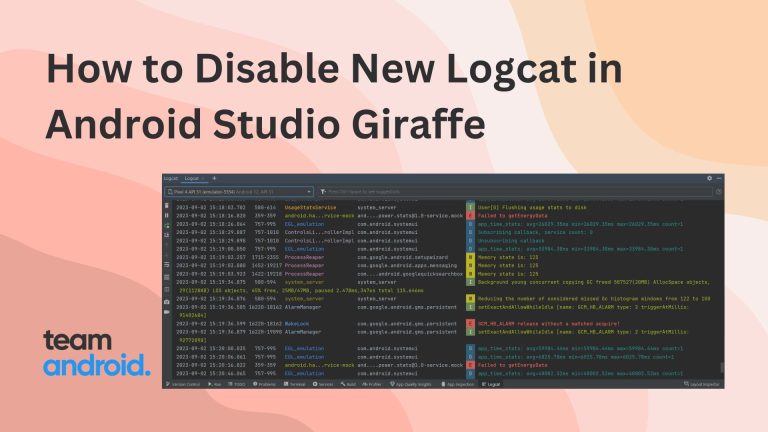
While there are many tools in Android Studio that play a vital role in developing a high quality and customized mobile applications of your need, if you have experience building one through Android Studio, you realize the importance of Logcat…